Simulation and Options > Data Graphics > Customize External Data

Customize External Data

The simulated data available to display in Data Graphics can be easily customized so that only specific simulation results are collected.  Limiting the amount of results to only the metrics needed will shorten the amount of time it takes to refresh the data in the External Data window at the conclusion of a simulation run.


To customize the output results collected for data graphics, perform the following steps:

  1. Open the Simulation Properties dialog from either the Process Simulator menu, Process Simulator toolbar, or the right-click menu on the layout.
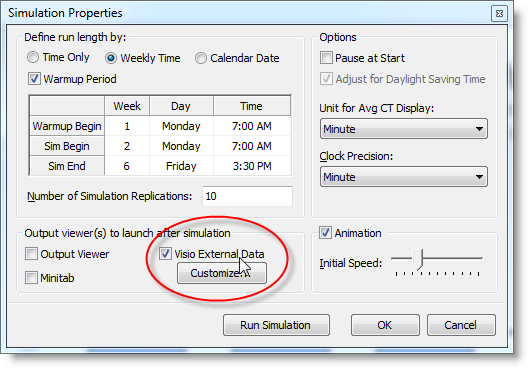
  2. Click on the Customize button located under the Visio External Data checkbox. This launches the Customize External Data dialog.

Please note: If you are running Microsoft Office Visio 2003 or 2007 Standard, the Visio External Data checkbox and Customize button will be disabled. Data Graphics are available in Microsoft Visio 2007 Professional and 2010 Professional and Premium.

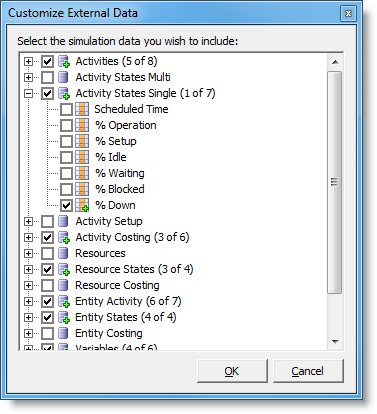
  1. Check the box(s) next to the simulation output metrics that you would like to include in the External Data window.
  2. To expand the metric types for more specific customization, click on the plus sign.

  1. The number of items checked for each metric type appears in parentheses next to the metric name.
  2. Click OK when finished customizing which simulation results should be collected.
  3. Click OK in the Simulation Properties dialog to return to the layout.

© 2014 ProModel Corporation • 556 East Technology Avenue • Orem, UT 84097 • Support: 888-776-6633 • www.promodel.com